Product features, search filter and comparison
Types of goods and characteristics to them are used for convenient division of goods by their properties, as well as to create a search filter, with division by many characteristics.Product characteristics can be grouped by product type.
To create characteristics, you first need to create a product type.
There will be different groups of characteristics for different types of products.
Create a product type, and after saving, add values to the characteristics.
If you plan to enable product comparison, then when you create a “Product Type” and “Characteristics” - check the box “Comparison” to those items that will be included in the comparison.
After that, when adding a product, you can specify its "Type", and set the characteristics, in the "Parameters, price and variety" tab.
Let's consider an example.
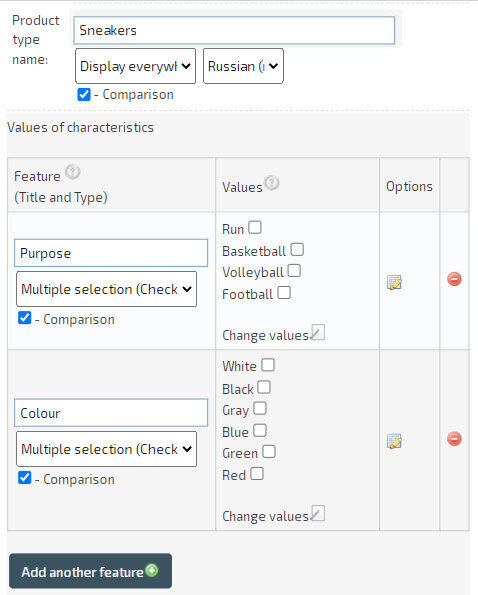
Let's create a product type - "Sneakers" and add a feature type. Title - "Destination", Type - "Multiple Choice". Meanings: "Running", "Basketball", "Volleyball", "Football".
Creating a search filter.
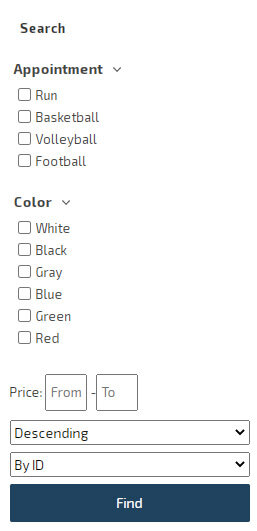
The resulting "Product Type ID" can be used to create a search filter block, for example, on the left side of the site.To create a "Search filter" click "My Blocks/Menu" - "Add Block/Menu".
Choose "Create Function Menu" and click "Search with Filter by Product Type".
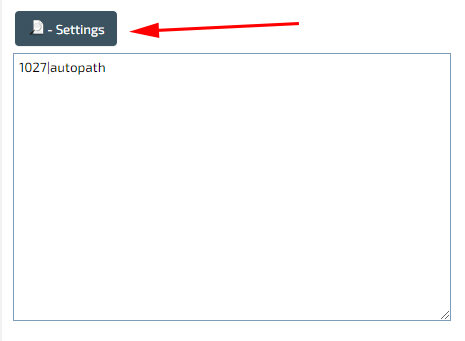 In the menu text, you can use the «autopath» parameter, which will tell the filter that the search should be carried out within the open «Category», as well as the «Product Type ID», if you need to immediately place disclosures to search for the product type. If the parameters are not specified, then the visitor will be able to select the required "product type" on their own. In our example, we specify "Block/menu text" - "1027|autopath", where "1027" is the ID of the "Sneakers" product type, and "autopath" is the search parameter on the same category page.
Block/menu position is “Left”. And also specify the parameter "Enter characters, upon detection of which to display the Block / Menu" - "/ru/pers_shop/sneakers", to display the search filter in expanded form, only on the category page "Sneakers", if the category name is “sneakers”. You can find out the path of all your categories after they are created. If the "Search filter" needs to be hidden on the "Product cards" page, then specify ".htm" in the "Enter characters that, if found, do not display the Block/Menu" item.
Product characteristics.
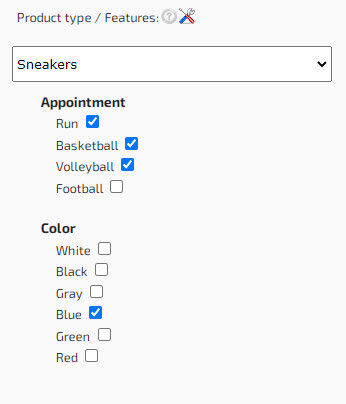
After the "Types of goods" are created, you can specify the "Characteristics for the goods". Go to the "Shop" - "My Products" section, open the product card for editing and in the "Parameters, Prices and Variety" tab, select the required "Product Type" and fill in the characteristics.All product cards, as well as characteristics, can be imported in the "Shop" - "Import products" section. To do this, first upload a few test products in the "Shop" - "Export Products" section by checking the "Export Product Types and Features" checkbox and use the created file as a template for uploading new or updating existing products.
Product comparison.
After the product characteristics are filled in, they can be used to compare products. To do this, turn on the comparison in the “Settings” - “Shop” - “Product View/Tabs/Variety”. Only those characteristics for which the “Comparison” checkboxes are checked when creating Product Types are included in the comparison of goods.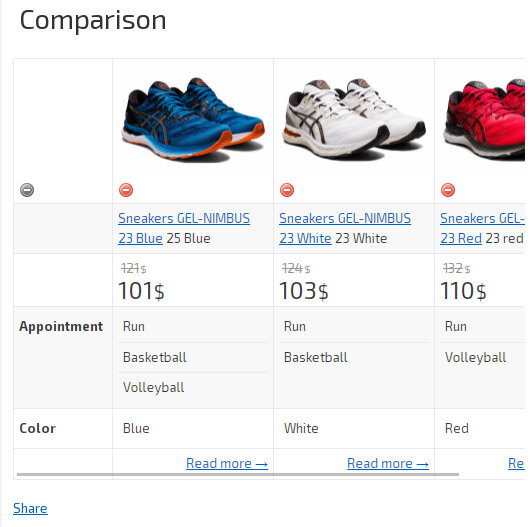
Translation of values.
There is no need to create values and product types for each language. The platform provides a tool for translating values. The tool allows for translation both line-by-line and in whole lists. You can manage translations on the page «Product types and attribute values», with the button «Translate attribute values».With this translation implementation, it will be easier for you to manage the import/export of product attributes, as it will significantly reduce the number of fields in the file.
Recommendations.
It is recommended to use «Multiple choice (Checkbox)» in the search filter, because it allows the user to select several values for one parameter at once. This significantly improves the convenience of product search. For example, a customer can choose multiple sizes, colors, brands, or other characteristics at the same time, and the filter will show all matching products. This approach does not limit the user to a single selection, making the results more flexible and accurate.
Additional recommendation: for a specific section with a defined set of products, it is recommended to create a functional menu with the correct product type preselected. To achieve that, you need to create a functional Block/Menu «Search with filter by product types» and specify the following information in its settings:
- in the Block/Menu content specify the product type ID and other required parameters, for example «12345|autopath|hideempty|checkedlist».
- in the field «Enter symbols upon detection of which the Block/Menu should be displayed» enter a category path fragment, for example «/ru/pers_shop/sneakers/»;
- specify the display language for this block/menu;
After that, the menu will automatically be displayed only in the relevant category and will immediately show appropriate filter elements. This improves navigation, speeds up selection, and allows users to instantly reach segmented product groups. If one product type belongs to multiple categories, there is no need to create separate blocks — just add multiple paths in the symbol input field that triggers menu visibility.